While mobile apps and voice assistants have become the standard for smart home control, a powerful and often overlooked alternative sits right on your desk: your personal computer. Transforming your PC into a central command hub offers unparalleled speed, customizability, and integration capabilities that other methods simply cannot match. For power users, gamers, and professionals who spend significant time at their desks, leveraging the PC provides a tactile, efficient, and deeply integrated way to manage every smart device in their home. This comprehensive guide will walk you through the entire process, from choosing the right software ecosystem to configuring advanced hardware like the Elgato Stream Deck and mechanical keyboards for ultimate control.
The core advantage of a PC-based system is its ability to act as a bridge between disparate services and provide a persistent, high-performance interface. Instead of unlocking your phone to find an app, you can press a single, dedicated key to trigger a complex “Movie Night” scene that dims the lights, lowers the blinds, and turns on your media center. This guide explores how to build this exact type of sophisticated, personalized smart home control system from the ground up.
Foundational Platforms: Choosing Your Smart Home Ecosystem
Before you can control your devices from your PC, you need a central platform that manages them. Most smart devices operate within one of three major ecosystems: Apple HomeKit, Samsung SmartThings, or Google Home. Your choice will dictate the software and methods you use to integrate control with your computer. While these platforms are primarily designed for mobile use, each offers pathways for PC-based interaction, either directly or through powerful third-party tools.
Apple HomeKit on PC
Apple’s HomeKit is renowned for its strong security and deep integration within the Apple ecosystem. Officially, there is no native HomeKit application for Windows. However, PC users can gain full control through intermediary software. The most powerful solution is running Homebridge or Home Assistant on a server (which can be your PC or a device like a Raspberry Pi). These platforms create a “bridge” that allows non-HomeKit devices to appear in your Home app and, more importantly, exposes your entire HomeKit setup to be controlled by webhooks, APIs, and other PC-friendly methods. For instance, you could configure a Homebridge plugin that creates a URL to trigger a specific scene, which you can then activate from any PC application.
Samsung SmartThings on PC
SmartThings is known for its broad device compatibility, supporting both Zigbee and Z-Wave protocols. This makes it a flexible choice for users with a diverse range of smart gadgets. Samsung offers a more direct path for PC control via its web-based interface and a robust API. Additionally, Microsoft’s “Your Phone” app provides some integration, but for true command-center functionality, the community-driven platform Home Assistant is again the superior choice. By integrating your SmartThings account with Home Assistant, you unlock granular control over every device, which can then be linked to PC-based hardware and software triggers.
Google Home on PC
Google Home (now integrated into the Google Home app) is one of the most popular ecosystems, largely due to the widespread use of Google Assistant. Direct PC control is limited; there is no official desktop app that replicates the mobile experience. However, Google’s ecosystem is heavily reliant on cloud-based routines and integrations. This makes it a prime candidate for services like IFTTT (If This Then That). You can create IFTTT applets where a “webhook” (a unique URL) is the trigger. When your PC sends a request to this URL, IFTTT tells Google Assistant to execute a command or routine, effectively giving you full control over your Google Home setup from your desktop.

The Desktop Command Center: Hardware Integration
Once your smart home platform is accessible, the next step is to create a physical, tactile interface on your desktop. This is where specialized hardware transforms a theoretical capability into an instantaneous, satisfying action. The goal is to eliminate the need for mouse clicks through menus and instead use dedicated buttons and key presses for all your common smart home tasks.
The Role of the Elgato Stream Deck
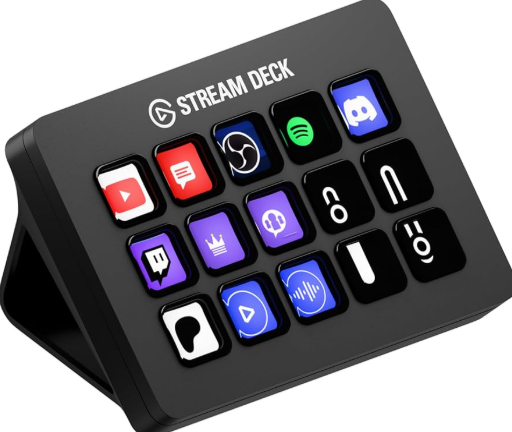
The Elgato Stream Deck is a game-changer for PC-based smart home control. While designed for streamers, its customizable LCD buttons are perfect for triggering smart home actions. Each button can be assigned an icon and a multi-step macro. Through its powerful software and community plugins, you can directly integrate with services like IFTTT, Home Assistant, and more.
- Direct Integration: Many smart device manufacturers, like Philips Hue and Nanoleaf, offer official Stream Deck plugins for direct control without intermediaries.
- IFTTT Webhooks: For platforms like Google Home, you can assign a Stream Deck button to trigger an IFTTT webhook. Pressing the button silently sends a web request that runs your desired routine.
- Home Assistant Control: If you use Home Assistant, there are dedicated Stream Deck plugins that allow you to call any service or entity directly, offering the most powerful and responsive control possible.
Leveraging Mechanical Keyboards with Macros
For those who prefer a more integrated solution, a programmable mechanical keyboard can serve a similar function to a Stream Deck. Keyboards running custom firmware like QMK or VIA allow you to program any key to perform complex actions beyond simple typing. You can dedicate specific, lesser-used keys (like Scroll Lock or Pause) or entire layers to smart home control. A macro can be programmed to open a specific URL (triggering a webhook), run a command-line script, or execute a keyboard shortcut in a control application. This method is incredibly subtle and efficient, embedding smart home control directly into the primary tool you use all day.

Step-by-Step Guide: Setting Up Your PC as a Smart Home Hub
This section provides a practical walkthrough for a common setup: using an Elgato Stream Deck to control a Google Home ecosystem via IFTTT. This method is highly accessible and doesn’t require setting up a dedicated server like Home Assistant.
Step 1: Create Your IFTTT Applets
First, you need to create the bridge between a web request and your smart home action.
- Go to the IFTTT website and create a new applet.
- For the “If This” trigger, search for and select “Webhooks”. Choose the “Receive a web request” trigger.
- Give the event a simple, unique name, like `toggle_office_light`.
- For the “Then That” action, search for your smart home service, such as “Google Assistant”.
- Choose an action like “Activate a scene” or “Say a simple phrase”. For the phrase, you could enter “turn on the office light”.
- Finish and save the applet. Repeat this for every action you want to control.
Step 2: Get Your IFTTT Webhook URL
Navigate to the Webhooks service page on IFTTT and click on “Documentation”. This page will show you your unique key. Your webhook URL will look like this: `https://maker.ifttt.com/trigger/{event}/with/key/{your_key}`. Replace `{event}` with the event name you created (e.g., `toggle_office_light`). This complete URL is what you will use to trigger the action.
Step 3: Configure Your Stream Deck
Now, link that URL to a physical button.
- Open the Stream Deck software on your PC.
- From the right-hand menu, find the “Website” action under the “System” category.
- Drag the “Website” action onto an empty button on your Stream Deck canvas.
- In the URL field, paste the full IFTTT webhook URL you constructed in the previous step.
- Give the button a title and assign a custom icon to represent the action (e.g., a lightbulb icon).
- Crucially, check the box that says “Access in background”. This ensures that pressing the button sends the request without opening a new browser window, making the action seamless and invisible.

Advanced Customization and Automation Scenarios
With the basic setup complete, you can explore more sophisticated automations that truly elevate the PC command center experience. This is where the power of a full computer outshines the limitations of mobile apps or voice commands.
Creating “Scenes” with a Single Button Press
A “scene” is a preset configuration for multiple devices. For example, a “Work Focus” scene might set your office lights to cool white, close the smart blinds, and play a focus playlist on your smart speaker. Instead of creating this scene in your smart home app, you can build it as a multi-action sequence on your Stream Deck. A single button press can be configured to trigger multiple IFTTT webhooks in succession, orchestrating a complex environmental change instantly.
Linking Game Events to Smart Lighting
For gamers, PC-based control opens up immersive possibilities. Using plugins for software like Razer Synapse or Corsair iCUE, you can link in-game events to your smart lights. Imagine your Philips Hue lights flashing red when you take damage in a game or turning green when you find a rare item. This level of dynamic, real-time integration is only possible when the computer running the game is also the hub controlling the environment.
Using PC Status as Triggers
Advanced users can leverage tools like Home Assistant to monitor the PC itself as a sensor.
- Lock/Unlock Automation: Create an automation that turns off your monitors, office lights, and locks your smart door lock when you lock your Windows or macOS user session. When you log back in, everything powers back on automatically.
- Application-Based Scenes: Configure automations that trigger when you launch a specific application. For instance, launching Adobe Premiere could automatically switch your lights to a color-accurate 5600K white balance, while launching a game could switch to a dynamic, colorful lighting scene.

Conclusion: The Future of PC-Centric Smart Homes
Integrating your smart home with your desktop computer transforms it from a collection of remote-controlled gadgets into a cohesive, responsive environment. By leveraging the power of your PC and the tactile convenience of hardware like the Stream Deck and programmable keyboards, you create a control system that is faster, more reliable, and infinitely more customizable than any other method. Whether you are a professional seeking to optimize your workflow, a gamer aiming for deeper immersion, or a tech enthusiast who loves to tinker, your desktop is the most powerful smart home controller you already own. As software platforms continue to open their APIs and hardware becomes more programmable, the potential for PC-centric automation will only continue to grow, making the command center on your desk an increasingly central part of the modern smart home.

Frequently Asked Questions (FAQ)
- Is using a PC for smart home control secure?
- Security depends on the methods you use. Using official integrations and robust platforms like Home Assistant, which can be run locally on your network, is very secure. When using cloud-based services like IFTTT, you are relying on their security protocols. It is crucial to use unique, strong passwords for all services and to not expose sensitive systems like security cameras or door locks to less secure, third-party services without proper vetting.
- Do I need to leave my PC on 24/7 for this to work?
- No, not necessarily. The control methods described here are active controls, meaning they work when you are at your PC and using it. Your smart home’s basic automations (e.g., lights turning on at sunset) will continue to function independently via your hub (like a Google Home or SmartThings Hub). The PC simply acts as a powerful remote control and automation trigger when it is on and you are using it.
- What is the most powerful software for PC-based smart home control?
- For maximum power and flexibility, Home Assistant is the undisputed leader. It is an open-source home automation platform that can run on your PC or a dedicated device like a Raspberry Pi. It acts as a central brain for virtually all smart devices, allowing them to communicate with each other regardless of brand. It provides an immense level of control that can be triggered by PC events, webhooks, and has dedicated Stream Deck integrations for the ultimate command center setup.
- Can I control my smart home with keyboard macros if I don’t have a special mechanical keyboard?
- Yes. While programmable keyboards with QMK/VIA firmware offer the most elegant solution, you can achieve similar results with software on any keyboard. Applications like AutoHotkey (for Windows) allow you to create powerful scripts and macros that can be tied to any key combination. You could, for example, program `Ctrl+Alt+L` to run a script that calls an IFTTT webhook to toggle your lights, achieving the same result without needing special hardware.