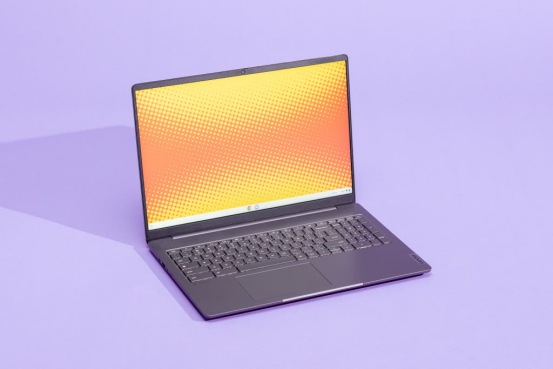
Choosing a new laptop is a significant investment, one that impacts your productivity, creativity, and entertainment for years to come. The market in 2025 is more diverse than ever, with a vast array of options spanning different operating systems, form factors, and performance levels. This guide serves as your comprehensive resource, designed to demystify the technical jargon and empower you to select a machine that perfectly aligns with your needs. We will not only walk you through the selection process but also explore how to maintain your device for longevity and optimal performance, ensuring your investment pays off in the long run.
How to Choose the Right Laptop in 2025: A Step-by-Step Guide
The foundation of a successful laptop purchase is a clear understanding of your own requirements. Before diving into specifications, it’s crucial to define how you will use the device. This self-assessment will guide every subsequent decision, from the processor you need to the amount of storage that makes sense. A mismatched laptop can lead to frustration, whether it’s a device that’s too slow for your work or one that’s overpowered and overpriced for your simple needs.
Step 1: Define Your Primary Use Case and Budget
First, categorize your intended usage. Are you a student who needs a lightweight device for notes and research? A creative professional who requires immense power for video editing or 3D rendering? A business user focused on spreadsheets and video conferencing? Or a casual user who primarily browses the web and streams media? Answering this question narrows the field considerably. Once you know your primary use, set a realistic budget. Laptops can range from a few hundred to several thousand dollars, and having a price range prevents you from overspending on unnecessary features.
- Entry-Level (Under $500): Best for basic tasks like web browsing, email, and document editing. Chromebooks and entry-level Windows laptops dominate this category.
- Mid-Range ($500 – $1200): The sweet spot for most users, offering a great balance of performance and value. Ideal for general productivity, moderate multitasking, and light creative work.
- High-End ($1200+): Designed for demanding users, including gamers, content creators, and professionals who need top-tier performance, premium build quality, and advanced features.
Step 2: Understand the Core Specifications
Technical specs can be intimidating, but understanding the key components is essential for making an informed choice. These four pillars determine your laptop’s overall performance.
- CPU (Central Processing Unit): The “brain” of the computer. For most users, an Intel Core i5 or AMD Ryzen 5 provides excellent performance. Power users should look for Core i7/i9 or Ryzen 7/9 series processors for more demanding tasks.
- RAM (Random Access Memory): This is your laptop’s short-term memory, crucial for multitasking. 8GB of RAM is the minimum for a smooth experience today. 16GB is the recommended standard for most users, while 32GB or more is beneficial for video editors, engineers, and high-end gamers.
- Storage (SSD/HDD): This is where your files, applications, and operating system are stored. Always opt for a Solid State Drive (SSD) over a Hard Disk Drive (HDD). SSDs are significantly faster, making your laptop boot up quickly and feel much more responsive. A 512GB SSD is a good starting point, with 1TB or more being ideal for users with large media files.
- GPU (Graphics Processing Unit): An integrated GPU (part of the CPU) is sufficient for everyday tasks. However, if you plan on gaming, video editing, or other graphically intensive work, a dedicated (or discrete) GPU from NVIDIA (GeForce RTX series) or AMD (Radeon RX series) is a must.
Step 3: Choose Your Operating System
The operating system (OS) is the software foundation of your laptop. The choice is primarily between Windows, macOS, and ChromeOS, each with distinct advantages.
- Windows OS: The most popular and versatile OS, offering the widest range of software and hardware compatibility. It’s the default choice for most users, especially for business and gaming.
- macOS: Known for its user-friendly interface, strong security, and seamless integration with other Apple devices. It is the preferred choice for many creative professionals due to its robust ecosystem of optimized software.
- ChromeOS: A lightweight, cloud-centric OS built around the Chrome browser. It’s simple, secure, and fast, making it an excellent choice for students and users with basic computing needs who are always connected to the internet.
Step 4: Evaluate Display, Portability, and Build Quality
The physical aspects of the laptop are just as important as the internal components. The display is your primary interface, so its quality matters. Look for a screen with at least Full HD (1920×1080) resolution and good brightness (300 nits or more). For portability, consider the laptop’s weight and size. Laptops under 3 pounds (1.4 kg) are ideal for frequent travelers. Finally, assess the build quality. An aluminum or magnesium alloy chassis will be more durable than a plastic one.

Laptop vs. Desktop: Making the Right Choice
The decision between a laptop and a desktop computer hinges on a fundamental trade-off: portability versus power and upgradability. While modern laptops have become incredibly powerful, desktops still hold key advantages in certain areas. Understanding these differences is crucial to selecting the right computing platform for your lifestyle and workload.
The Unmatched Advantage of Laptops: Portability
The primary reason to choose a laptop is its inherent portability. The ability to work from a coffee shop, attend classes, or travel without leaving your digital life behind is a game-changer for many. Laptops integrate the screen, keyboard, trackpad, and battery into a single unit, offering unparalleled convenience. This all-in-one design is perfect for students, frequent travelers, and professionals who need to be mobile. Furthermore, they consume significantly less power and have a smaller physical footprint, making them ideal for smaller living or working spaces.
The Enduring Strengths of Desktops
Desktops excel where laptops compromise. Their key advantages lie in performance, upgradability, and overall cost-effectiveness.
- Superior Performance: A desktop’s larger chassis allows for more powerful components and better cooling systems. This means you can get higher-end CPUs and GPUs that would be impossible to cool effectively in a thin laptop, making desktops the undisputed king for high-end gaming, scientific computing, and professional video production.
- Easy Upgradability & Repair: Desktop components are standardized and modular. You can easily swap out a graphics card, add more RAM, or increase storage without replacing the entire machine. This makes them more future-proof and easier to repair than laptops, where many components are soldered to the motherboard.
- Cost-Effectiveness: Dollar for dollar, a desktop computer will always offer more performance than a laptop. You are not paying a premium for miniaturization and a built-in battery and display.
- Ergonomics: A desktop setup with a large monitor, a full-size keyboard, and a comfortable mouse is generally more ergonomic for long work sessions than hunching over a laptop screen.

Chromebooks Explored: Are They Still a Viable Option?
Chromebooks, powered by Google’s ChromeOS, have carved out a significant niche in the laptop market. Initially seen as simple “browser in a box” machines, they have evolved into capable devices for a specific set of users. In 2025, they remain a highly relevant option, provided their strengths align with your needs and you understand their limitations.
The Core Strengths of ChromeOS
The appeal of a Chromebook lies in its simplicity and efficiency. Because ChromeOS is a lightweight, Linux-based operating system, it can run smoothly on less powerful hardware, which translates to lower costs and longer battery life.
- Speed and Simplicity: Chromebooks boot up in seconds. The interface is clean and intuitive, essentially an extension of the Chrome browser. This makes them incredibly easy to use, especially for those less tech-savvy.
- Security: ChromeOS is one of the most secure consumer operating systems. It features automatic updates, sandboxing (which isolates apps from the rest of the system), and verified boot, making it highly resistant to viruses and malware.
- Cloud Integration: These devices are designed to work seamlessly with Google’s ecosystem (Gmail, Docs, Drive, Photos). If you already live in the Google cloud, a Chromebook offers a deeply integrated experience.
- Affordability: Generally, Chromebooks are more affordable than their Windows and macOS counterparts, making them an excellent choice for students and budget-conscious buyers.
Understanding the Limitations
The primary drawback of a Chromebook is its reliance on an internet connection and its software limitations. While offline capabilities for apps like Google Docs and Netflix have improved, many functions still work best online. The biggest hurdle for many is software compatibility. You cannot install traditional Windows or macOS applications like the full Adobe Creative Suite or specialized engineering software. While support for Android apps and Linux software has expanded their capabilities, it doesn’t completely bridge the gap for professionals who rely on specific desktop programs.
Who Should Buy a Chromebook in 2025?
A Chromebook is an excellent choice for users whose computing tasks are primarily web-based. This includes:
- Students: For writing papers, conducting research, participating in online classes, and collaborating on projects using Google Workspace.
- Casual Home Users: For browsing the web, managing email, streaming video, and using social media.
- As a Secondary Device: A lightweight, secure, and long-lasting Chromebook can be a perfect travel companion or a secondary laptop for quick tasks around the house.

Special Considerations for Business Laptops
While consumer laptops can often be used for work, dedicated business laptops are engineered with a different set of priorities. They emphasize security, durability, and manageability to meet the demands of a professional environment. When choosing a laptop for work, especially in a corporate setting, these factors often outweigh raw performance or flashy designs.
Security as a First Priority
Protecting sensitive company and client data is paramount. Business laptops incorporate hardware and software security features not typically found on consumer models.
- TPM (Trusted Platform Module): A dedicated microchip that provides hardware-based security for encryption keys, protecting data even if the hard drive is stolen.
- Biometric Authentication: Fingerprint readers and IR cameras for Windows Hello provide fast and secure logins, moving beyond simple passwords.
- BIOS-Level Protection: Features like HP Sure Start or Dell SafeBIOS can detect and automatically recover from firmware attacks that would be invisible to traditional antivirus software.
Durability and Reliability
Business laptops are built to withstand the rigors of daily commutes and travel. Many are tested against MIL-STD-810G or 810H military standards, which certify their resistance to drops, shocks, vibrations, and extreme temperatures. They also typically come with more robust warranty and support options, including on-site service, which minimizes downtime for critical work.
Performance and Connectivity for Productivity
Performance in a business context is about seamless multitasking and responsiveness. A combination of a modern Core i5/i7 or Ryzen 5/7 processor, 16GB of RAM, and a fast NVMe SSD is the standard for a productive business machine. Additionally, a comprehensive selection of ports (including Thunderbolt/USB4, HDMI, and Ethernet) is crucial for connecting to external displays, networks, and peripherals without relying on a tangle of dongles.

Maintaining Your Laptop for Peak Performance
A laptop’s performance isn’t static; it can degrade over time due to software bloat, hardware issues, and battery wear. Proactive maintenance is key to keeping your device running smoothly for its entire lifespan. This involves addressing slowdowns, optimizing battery health, and managing heat effectively.
Diagnosing and Fixing a Slow Laptop
One of the most common complaints is a laptop that has become sluggish. The cause is often multifaceted, involving both software and hardware factors.
- Software Culprits:
- Too Many Startup Programs: Disable unnecessary applications from launching at boot via the Task Manager (Windows) or System Settings (macOS).
- Malware and Viruses: Run regular scans with a reputable antivirus program to remove malicious software that could be consuming resources in the background.
- Full Storage Drive: An SSD that is nearly full will slow down significantly. Aim to keep at least 15-20% of your drive free for optimal performance. Use disk cleanup utilities to remove temporary files.
- Outdated OS and Drivers: Ensure your operating system, drivers, and key applications are always up to date to benefit from performance improvements and security patches.
- Hardware Bottlenecks:
- Insufficient RAM: If you frequently have many tabs and applications open and your system feels slow, upgrading your RAM (if possible) can provide a significant boost.
- Aging HDD: If your laptop still uses a mechanical hard drive, upgrading to an SSD is the single most effective performance upgrade you can make.
- Overheating: A laptop that is running too hot will throttle its CPU and GPU to prevent damage, resulting in major slowdowns. Ensure vents are clear of dust and debris.
A Practical Guide to Extending Laptop Battery Life
Maximizing the time you can work away from a power outlet involves both smart habits and system settings.
- Adjust System Settings: Lower your screen brightness, as the display is a major power consumer. Use the built-in “Battery Saver” or “Low Power Mode” in your OS. Disconnect peripherals you aren’t using and turn off Bluetooth and Wi-Fi when not needed.
- Manage Your Applications: Close applications and browser tabs you are not actively using. Some browsers have efficiency modes that can help reduce resource consumption.
- Mind Your Charging Habits: Avoid letting your battery drain completely to 0% regularly. For modern lithium-ion batteries, keeping the charge between 20% and 80% can help prolong its overall lifespan. Many laptops now include battery health management software that can limit the maximum charge to 80% for this purpose.
Do Laptop Cooling Pads Really Work?
Overheating is a primary cause of performance throttling and can shorten the lifespan of internal components. Laptop cooling pads are accessories designed to combat this. A cooling pad is essentially a stand with built-in fans that increases airflow to the underside of your laptop. Their effectiveness varies. Passive coolers (simple stands that elevate the laptop for better natural airflow) can provide a small benefit. Active coolers with fans can be more effective, often reducing temperatures by 5-10°C under load. They are most beneficial for gaming or other intensive tasks where the laptop’s internal fans are struggling to keep up. While not a magic bullet for a system with clogged vents, a good cooling pad can be a useful tool for power users looking to extract maximum sustained performance.
Frequently Asked Questions (FAQ)
- Q1: How much RAM do I really need in 2025?
- For 2025, 8GB of RAM should be considered the absolute minimum for a smooth experience with basic multitasking. However, 16GB is the recommended sweet spot for the vast majority of users, providing ample headroom for numerous browser tabs, productivity applications, and background processes without slowdowns. Power users, gamers, and content creators should aim for 32GB or more for demanding workflows.
- Q2: Is a 4K display worth it on a laptop?
- A 4K display on a laptop offers incredibly sharp images and text, which is a great benefit for photo and video editors who need to see fine detail. However, for most users, it comes with significant downsides. It dramatically reduces battery life and can make text and icons appear very small without OS scaling, which can sometimes cause issues with older applications. For most screen sizes (13-16 inches), a Full HD (1920×1080) or QHD (2560×1440) resolution provides excellent clarity without the battery life penalty of 4K.
- Q3: Should I buy an extended warranty for my new laptop?
- The value of an extended warranty depends on the laptop’s cost and your risk tolerance. For high-end, expensive laptops (especially those where repairs are difficult and costly), an extended warranty that includes accidental damage protection can provide valuable peace of mind. For budget-friendly laptops, the cost of the warranty may approach a significant fraction of the device’s replacement cost, making it less worthwhile. Always read the fine print to understand what is covered before purchasing.
- Q4: What is the single most important upgrade for an older, slow laptop?
- Without a doubt, the most impactful upgrade for an older laptop that uses a mechanical hard disk drive (HDD) is to replace it with a Solid State Drive (SSD). An SSD dramatically reduces boot times, application loading times, and file transfer speeds, making the entire system feel significantly faster and more responsive. It is a far more noticeable improvement than adding more RAM, assuming the system already has at least 4-8GB.
- Q5: Can I use a gaming laptop for business or school?
- Yes, you absolutely can. Gaming laptops are essentially high-performance machines with powerful CPUs, ample RAM, and dedicated GPUs. This makes them more than capable of handling any business or school task. However, you should consider the trade-offs: they are typically heavier, have shorter battery life, and often feature aggressive “gamer” aesthetics that might not be suitable for a professional environment. If you need top-tier performance and don’t mind the bulk, a gaming laptop can be a very versatile choice.