Understanding the Core of iPhone Emergency SOS
Despite being integrated into iOS for several years, statistics suggest that nearly 90% of iPhone users are completely unaware of the Emergency SOS feature or how to trigger it under duress. At its core, Emergency SOS is a bypass mechanism designed to connect you to local emergency services (such as 911 in the US, 999 in the UK, or 112 in Europe) instantly, without needing to unlock your phone, dial numbers, or even look at your screen.
The underlying principle of this feature is rooted in crisis psychology. During a high-stress event, fine motor skills and cognitive recall diminish rapidly. Apple engineered this feature to rely on gross motor movements—specifically, gripping and squeezing the device—ensuring that a user can summon help even if they are unable to see the screen or are trying to activate it discreetly inside a pocket.
The Silent Data Handoff
Beyond simply placing a phone call, Emergency SOS initiates a complex sequence of background data transfers. Once the call to emergency services ends, your iPhone automatically alerts your designated emergency contacts with a text message. This message includes your current location, and for a period of time after you enter SOS mode, your contacts will receive updates if your location changes. This seamless transition from emergency dispatch to personal network notification is what makes the ecosystem incredibly robust.
How to Activate Emergency SOS Across Different iPhone Models
Because Apple has evolved its hardware design over the years, the method for triggering Emergency SOS differs depending on whether your device uses Face ID or Touch ID. Memorizing the tactile sequence for your specific device is the most important step in emergency preparedness.
Activation on iPhone 8 and Later (Face ID Models)
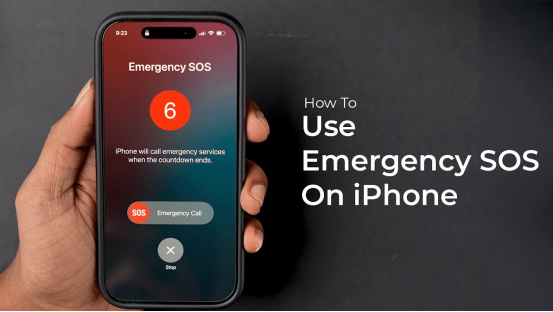
For modern iPhones without a physical home button, the process relies on a continuous squeeze mechanism. You must press and hold the side button (power button) and either the volume up or volume down button simultaneously. An Emergency SOS slider will appear on the screen. If you continue to hold the buttons instead of dragging the slider, a countdown begins, accompanied by a loud alert siren. Once the countdown finishes, the phone automatically calls emergency services.
Activation on iPhone 7 and Earlier (Touch ID Models)
Older devices utilize a rapid-press mechanism. You must rapidly press the side (or top) button five times in quick succession. In certain regions, such as India, the default requirement is only three presses. Once triggered, the Emergency SOS slider will appear, allowing you to initiate the call.
| iPhone Model Type | Activation Method | Visual/Audio Cue |
|---|---|---|
| iPhone 8 & Newer (Face ID) | Press and hold Side + Volume Button | Haptic countdown, loud siren, screen slider |
| iPhone 7 & Older (Touch ID) | Rapidly press Side/Top button 5 times | Screen slider appears instantly |
| Apple Watch | Press and hold the side button | Siren countdown and slider |
Configuring Your Medical ID and Emergency Contacts
The Emergency SOS feature reaches its full potential only when paired with a comprehensively filled-out Medical ID. First responders are trained to check smartphones for medical information. By configuring this, you provide paramedics with critical data such as blood type, severe allergies, and underlying medical conditions while you are unresponsive.
Essential Setup Checklist
- Open the Health app on your iPhone and tap your profile picture in the top right corner.
- Select “Medical ID” and tap “Edit” in the top right corner.
- Toggle on “Show When Locked” (This is the most critical step; without it, responders cannot see your info).
- Toggle on “Share During Emergency Call” to transmit your data directly to dispatchers in supported regions.
- Scroll down to “Emergency Contacts” and tap the green plus icon to add trusted family members or friends.
- Assign specific relationship tags (e.g., Mother, Spouse, Brother) to each contact.
Expert Advice: The Silent Mode Configuration
Pro Tip: While the loud countdown siren is useful for deterring an attacker or drawing attention if you are injured, there are situations (such as hiding from an intruder) where silence is necessary. You can configure the SOS feature to trigger silently. Go to Settings > Emergency SOS, and toggle on “Call Quietly.” This ensures the countdown happens without flashing lights or loud alarms, keeping your location concealed.
Advanced Capabilities: Crash Detection and Satellite SOS
Apple has continually pushed the boundaries of the Emergency SOS umbrella, integrating advanced hardware sensors to automate the call for help when you are physically unable to do so.
High-G Crash Detection
Available on iPhone 14 and newer models, Crash Detection utilizes a high dynamic range gyroscope and a dual-core accelerometer capable of detecting G-force measurements up to 256Gs. Combined with the barometer (which detects cabin pressure changes from deployed airbags) and the microphone (which identifies extreme sound levels of a collision), the iPhone uses machine learning algorithms to detect a severe car crash. If you do not dismiss the on-screen prompt within 10 seconds, Emergency SOS is automatically triggered.
Emergency SOS via Satellite
For adventurers and rural residents, the iPhone 14 and 15 lineups introduced Emergency SOS via Satellite. This groundbreaking technology bypasses traditional cellular and Wi-Fi networks entirely. By utilizing custom-designed antennas, the iPhone connects directly to Low Earth Orbit (LEO) satellites. When you try to call 911 outside of cellular range, the phone will prompt you to point the device at the sky, guiding you to lock onto a satellite and transmit a compressed text message containing your location and medical ID to a relay center.
Frequently Asked Questions (FAQ)
- Can I accidentally trigger Emergency SOS in my pocket?
- Yes, accidental triggers can happen, especially if you lean against a hard surface that presses the side and volume buttons simultaneously. If the countdown starts, you can simply release the buttons before the timer ends to cancel the call. If the call goes through, do not hang up immediately; stay on the line and inform the dispatcher it was an accident to prevent them from sending police to your location.
- Does Emergency SOS work if I don’t have a cellular plan or SIM card?
- Yes. By law in most countries, any mobile phone capable of connecting to a network must be allowed to dial emergency services, even if the device does not have an active SIM card, cellular plan, or is locked to a different carrier. As long as there is a compatible cell tower nearby, the SOS call will connect.
- Will Emergency SOS work internationally?
- Yes, the iPhone is programmed to automatically route your call to the local emergency services number of the country you are currently visiting. However, automatic text notifications to your emergency contacts may depend on your cellular roaming capabilities.
- Why did my iPhone lock me out of Face ID after triggering SOS?
- This is an intentional security feature. The moment you initiate the Emergency SOS sequence (even if you cancel it before the call is placed), iOS instantly disables Face ID and Touch ID. This is designed to prevent law enforcement or attackers from forcing you to unlock your phone using your biometric data. You must manually enter your passcode to re-enable biometric unlocking.